Why Browser-Based Stem Separation Matters
If you've ever tried to grab an acapella from a track you love—or pull the drums out for a remix—you know the usual routine: upload your file to some random website, wait for it to process on a server somewhere, then download a zip. But every upload means your audio leaves your machine. Privacy? Your file is now on someone's cloud. Speed? You're at the mercy of their server queue.
Onomo’s Stem Splitter gives you the private option as the default. Quick mode runs entirely in your browser — no uploads, no servers, no credits, nothing leaves your device. It's instant and free, and it's the always-available default.
When you need studio-grade multi-stem separation, Studio AI mode runs the Demucs neural model on a cloud GPU for much cleaner results. That one does upload your audio to be processed and uses AI credits (you'll need the rights to the audio). It's the quality path when the in-browser split isn't enough.
So you get an honest choice: instant + private + free for a quick vocal/instrumental split, or GPU-powered Demucs when you want full stems and don't mind the trade-off.
Step 1: Open the Stem Splitter in Onomo
Everything lives in one place. Navigate to the Toolkit page from the Onomo dashboard. You'll find Stem Splitter listed with the other power tools. No sign-up required—just open it and go.
Drag and drop any audio file onto the upload area. Supported formats: MP3, WAV, FLAC, OGG, Opus, M4A. You can also click to browse your files. The tool accepts files up to a reasonable length (typically full songs under 10 minutes work well).
Step 2: Choose Your Mode – Instant or Deep
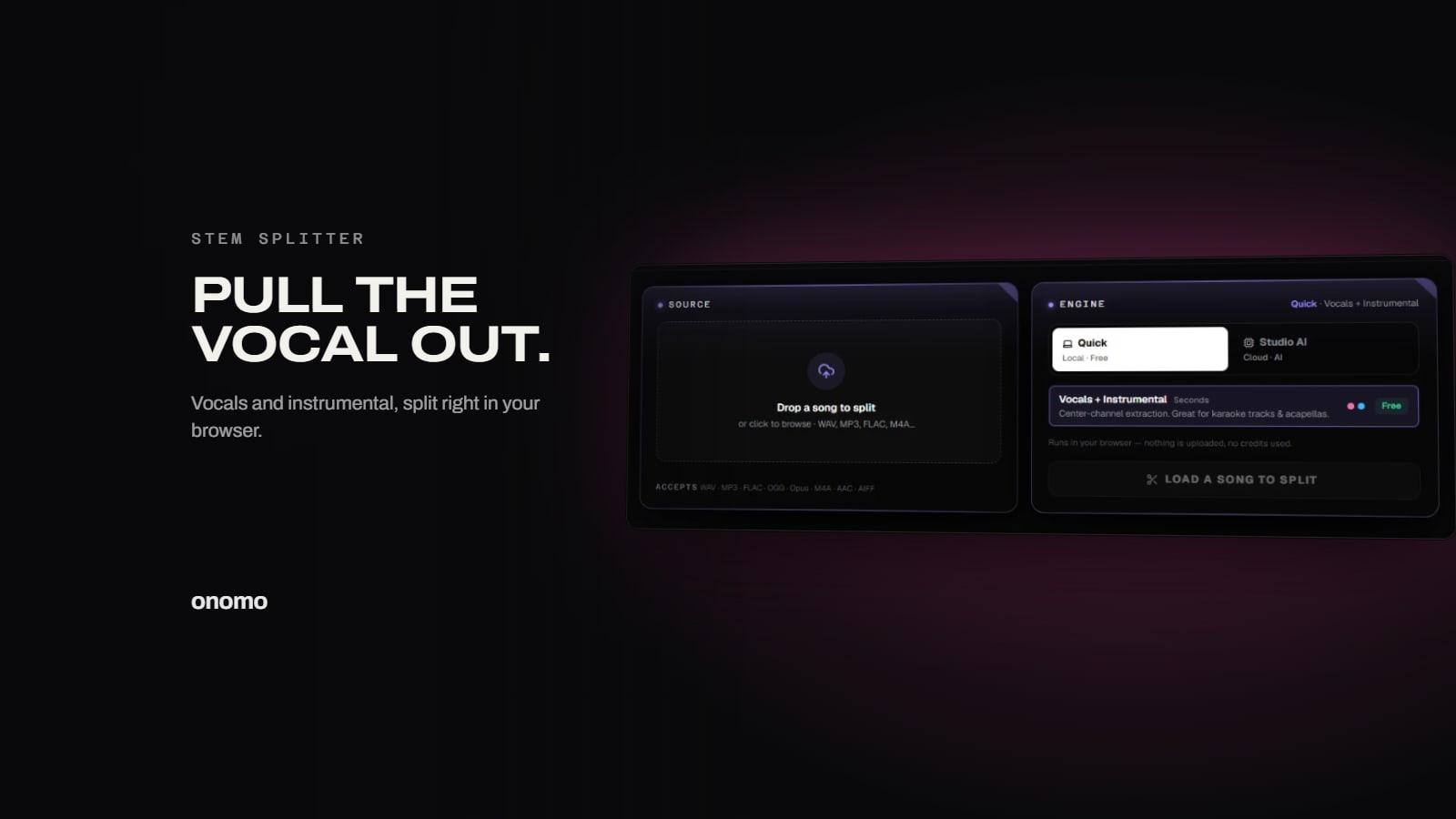
Once your file loads, you'll pick an engine:
- Quick – Splits vocals from instrumental right in your browser, in seconds. It uses center-channel extraction (works best on stereo mixes). Free, no credits, and nothing is uploaded — your audio never leaves your device. Great for fast acapella extractions or grabbing a clean instrumental for a cover.
- Studio AI – Runs Demucs (the same neural model behind many studio-grade splitters) on a cloud GPU for full multi-stem extraction. Choose Fast or Best for a 4-stem split (vocals, drums, bass, other), or 6-stem to also separate guitar and piano. This mode uploads your audio to a GPU and uses AI credits — so use it on tracks you have the rights to.
The difference is a deliberate trade-off: Quick keeps everything private and free; Studio AI gives you cleaner, more detailed stems in exchange for uploading and spending credits.
Step 3: Extract and Download Stems
Click your chosen mode, wait for the progress bar to fill, and you'll see the separated stems appear in a preview panel. Each stem has its own waveform and playhead. You can solo, mute, and preview each one before downloading.
Download stems individually as WAV or MP3, or grab them all at once as a ZIP. The files are ready to drop into any DAW—Ableton, FL Studio, Logic, or Onomo's own Studio.
The Instant Karaoke Shortcut: Center Isolate
If all you want is a karaoke track — the song minus the lead vocal — there's an even faster utility in the Toolkit: Center Isolate. It exploits one fact of stereo mixing: most lead vocals sit dead center, nearly identical in the left and right channels. Subtract the channels and whatever sits in the middle cancels out — no AI, no upload, no waiting. One toggle does it both ways:
- Keep center off (the default, or tap the Karaoke preset): the centered vocal drops way down while the spread-out instruments stay put.
- Keep center on (or tap the Isolate Lead preset): the reverse — you keep only what was centered, pulling the vocal forward and dropping most of the stereo-spread instrumentation. Handy for grabbing an a cappella-style snippet to sample or study, even if it isn't studio-clean.
Know the limits, though: phase cancellation only removes what's truly centered. If the vocal is doubled, drenched in stereo reverb, or panned off-center, you'll hear leftover bits or thin artifacts — that's the physics, not a bug. And if the karaoke result sounds hollow, that hollowness is the centered kick and bass leaving too. Older, simpler mixes with a bone-dry centered vocal cancel best. Treat it as a fast, free preview; when it isn't clean enough, come back to the Stem Splitter's neural separation.
Step 4: (Optional) Convert Stems to MIDI with Audio-to-MIDI
This is where Onomo's toolkit gets extra useful. Once you have a melodic stem (like a bassline, chord progression, or synth lead), you can convert it to MIDI using the Audio-to-MIDI tool, also in the Toolkit.
- Polyphonic mode uses Spotify's Basic Pitch model to detect multiple notes at once—great for chords.
- Monophonic mode tracks single-note lines (bass, vocal melody) with high accuracy.
Export the MIDI file and drop it into any DAW to rearrange, transpose, or trigger your own synths. Suddenly that bassline you extracted becomes editable notes you can rewrite.
Step 5: Use Your Stems in a New Track or Remix
Now the fun part. Import your vocal stems into Onomo Studio to build an original beat around them. Use the extracted drums as a reference layer, or replace them with your own sounds from Foundry's free generative engines. The MIDI data from step 4 can trigger any of Studio's 20 built-in synth engines—turn that old chord progression into a brand-new sound.
There's no file-management headache either. Your stems stay in your session, ready to drop into the next step.
Whether you're pulling an acapella for a remix, grabbing a drum break to sample, or extracting a bassline to study the intervals, Onomo's Stem Splitter gives you a fast, free way to separate vocals from a song right in your browser — with a studio-grade neural option a click away when you need it.
Ready to try it? Open the Stem Splitter now—no account, no uploads, no catch.
Ready to try it yourself?
Onomo is a creative suite in your browser — a full DAW, a design editor, a video editor and a writing room. Free to start, nothing to install.
Open the Stem SplitterOther product and company names mentioned here are trademarks of their respective owners. Onomo isn’t affiliated with or endorsed by them. Details about other products are accurate to the best of our knowledge as of the post date and may change.