The part everyone dreads: timing the words
A lyric video is mostly one tedious job — making each line appear at the exact moment it's sung. Do it by hand in a generic editor and you'll spend an hour dragging text blocks along a timeline, nudging each one a few frames, then re-watching to catch the line that's a beat late. One slow section and you're redoing the whole verse.
Onomo's Motion editor exists to take that job off your hands. It's a browser-based music-video editor with a dedicated lyric workflow, and it gives you four different ways to get your words timed to the song — from a quick manual tap-along all the way to fully automatic alignment that listens to the vocal and times the words for you. This guide covers all four honestly, in order, so you can pick the one that fits your track, then turn the timed lyrics into a polished karaoke video.
A quick note up front: this is specifically the timing and auto-sync guide. If you keep your lyrics in Onomo's Journal and want the story of how lyrics flow from writing into Motion, that's a separate post on the Journal-to-Motion handoff. Here we're focused on the methods that get each word onto the timeline at the right moment.
Where your lyrics come from
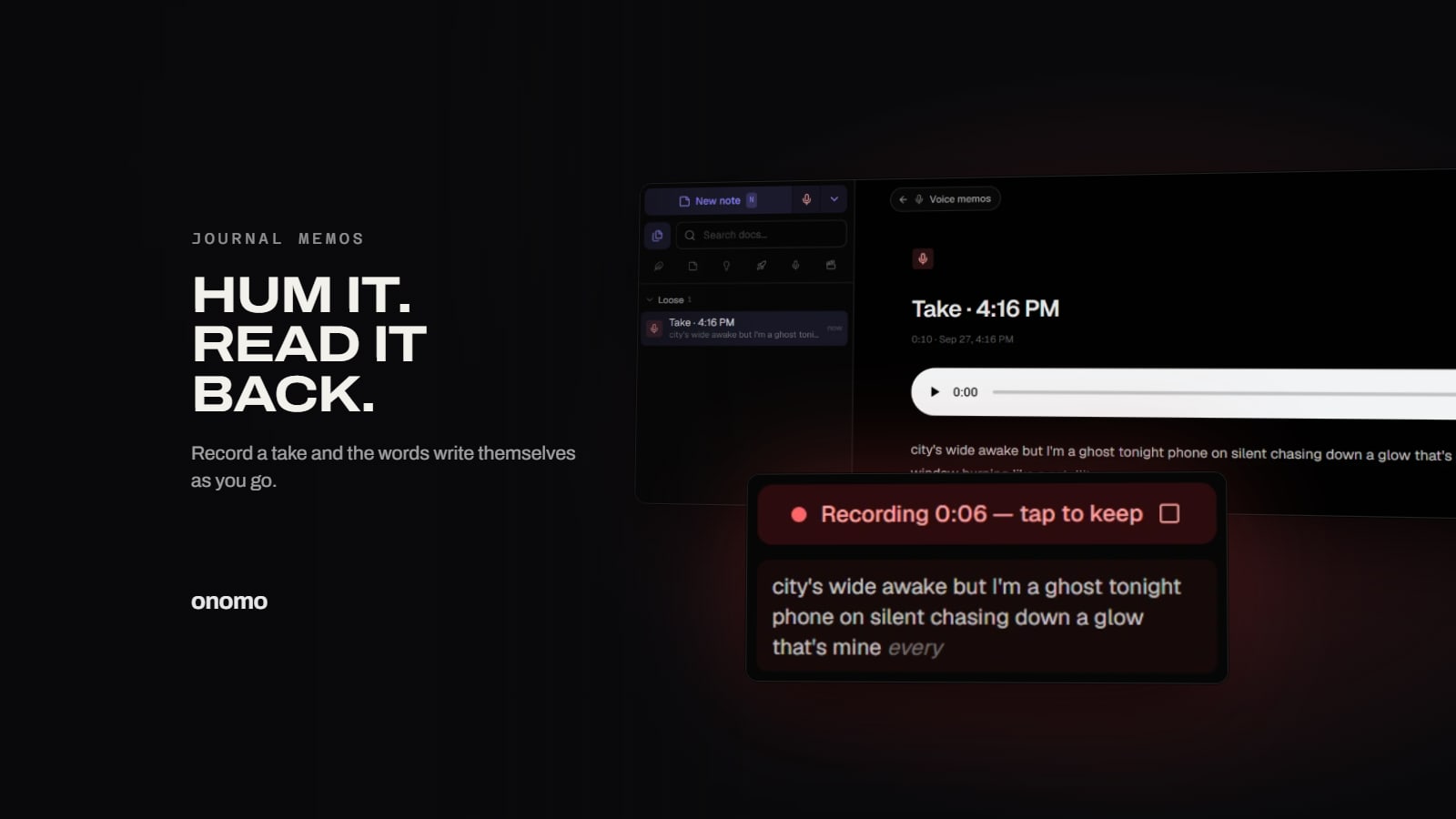
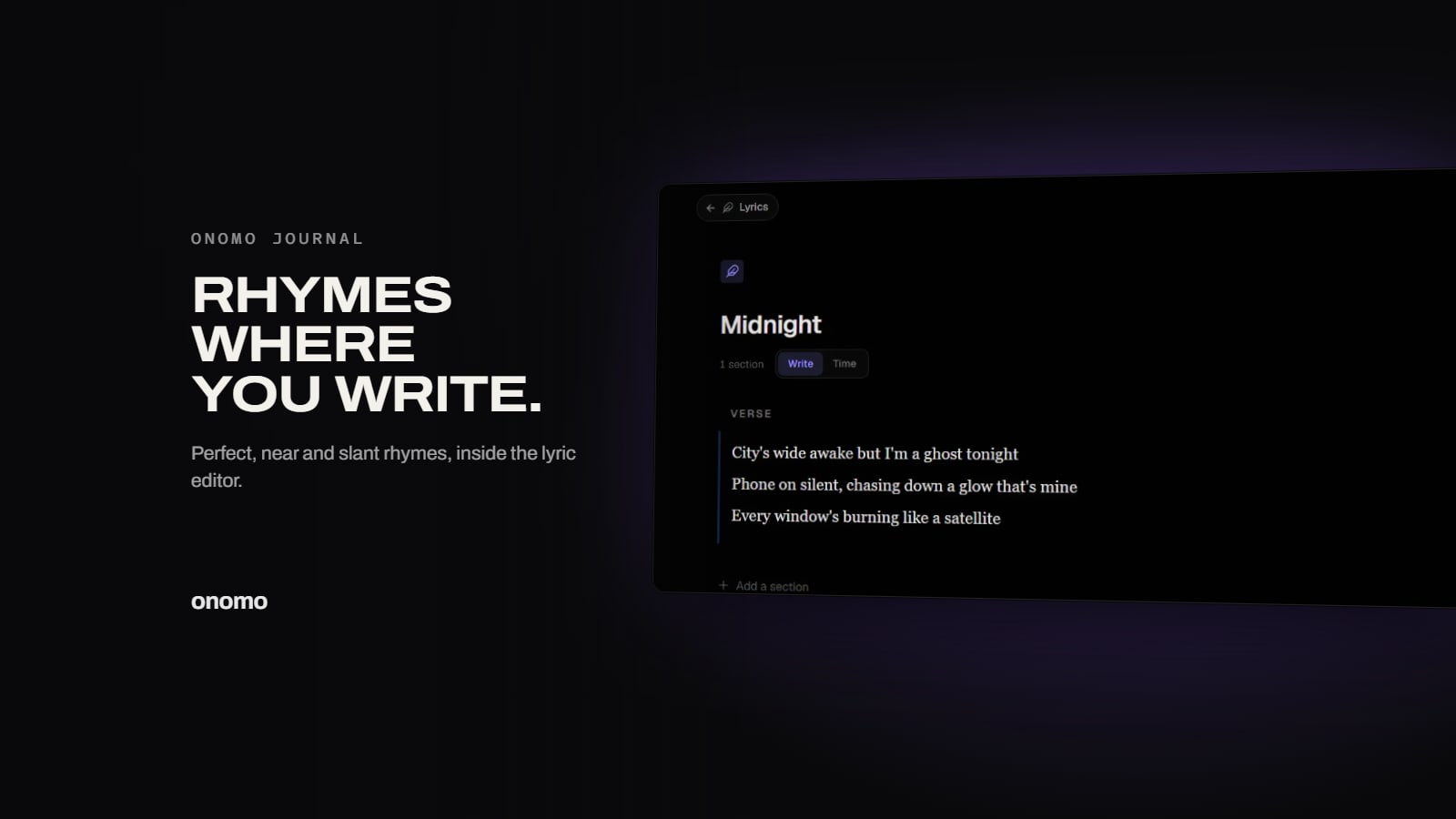
Before timing, you need the words on the screen. In Motion you can:
- Pull them in from Onomo's Journal, where you wrote them as a lyric doc, or
- Type or paste them directly — straight from a notes app, an email to yourself, or wherever your draft lives.
Either way, you end up with your lyrics as lines of text ready to be timed. Now pick your method.
Method 1: Tap-to-time (the fast manual pass)
This is the method most people reach for, because it's quick and it feels natural. You play the song and tap the Space bar to stamp each line as it comes up. You listen once, tapping in real time as the vocal moves through the lyric, and each tap records when that line should appear.
It works because you already know the song. You're not measuring anything or zooming into a waveform — you're performing the timing live, the way you'd tap your foot. A three-minute song gets roughly timed in one play-through. It's the single fastest way to go from untimed text to a usable lyric track.
Method 2: Manual editing (cleanup and precision)
Whatever method you start with, you'll usually want to tidy a few lines, and Motion lets you edit the timings by hand. You can adjust when a line starts and how long it holds, nudging anything that came out slightly early or late.
The smart way to use this is in combination with tap-to-time: do a fast tap pass first to get every line roughly placed, then switch to manual editing and fix only the handful that need it. That's far faster than placing all of them precisely from the start, and it's how most lyric videos actually get made. Manual control is also your safety net — no automatic method is perfect, and being able to drag a line into place means you're never stuck with a timing you can't fix.
Method 3: Import an .lrc file
If you already have timed lyrics — maybe you made an .lrc somewhere else, or someone sent you one — Motion can import the .lrc directly. The .lrc format is the standard for synced lyrics: plain text with a timestamp on each line. Bring it in and your lines arrive already timed, no tapping required.
This is the path to use when the timing work is already done and you just want it inside Motion so you can style and render it. You can still open any line in manual editing afterward if something needs a tweak.
Method 4: Automatic alignment (let the computer time the words)
This is the one that feels like magic, and it's the reason you can skip syncing entirely. Motion includes automatic alignment that uses Whisper running directly in your browser to listen to the song's vocal and time the words for you. You give it your lyrics; it figures out when each part is sung and places the timings automatically.
A few honest things to know so it goes smoothly:
- It's fully client-side. The Whisper model runs in your browser. Your audio isn't uploaded to a server to be processed — the analysis happens on your own device, which is good for both privacy and not waiting in a queue.
- The first run can take a moment. Because the model runs locally, there's some up-front work the first time. Give it a beat to do its thing; it's doing real speech analysis on your track, not a quick lookup.
- It's a strong starting point, not a guarantee. Dense, fast, or heavily processed vocals are harder to align than a clear lead. That's exactly why manual editing (Method 2) exists — when auto-alignment gets you 90% of the way, you fix the last few lines by hand instead of timing all of them yourself.
For most songs with an audible lead vocal, automatic alignment plus a quick manual cleanup is the fastest route to a fully timed lyric video.
Turn timed lyrics into a karaoke video
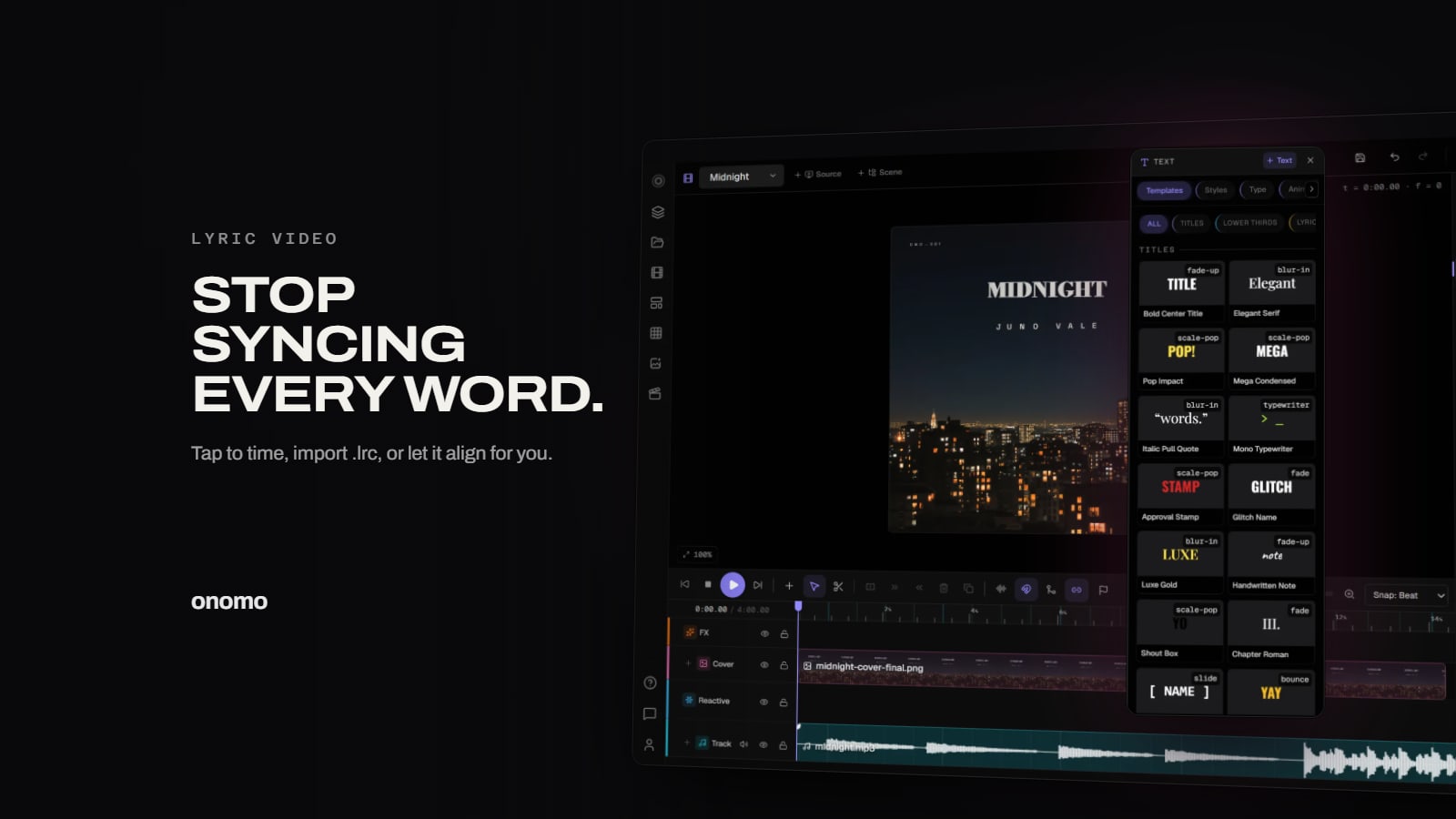
Once your words are timed — by any of the four methods — you make them look good. This is where Motion's text engine comes in, and it's deep. You're not limited to text that simply appears and disappears.
For lyric and karaoke videos specifically, you get rendering styles built for sung words:
- Karaoke highlight — a word-by-word highlight sweep that lights up each word as it's sung, the classic bouncing-along read.
- Line reveals — lines that fade, slide, scale-pop, or blur into view as they arrive.
- Typewriter — words that type across the screen in time with the vocal.
These animations can be applied per character, per word, or per line, so you control exactly how each lyric arrives. On top of that you choose your fonts and styling to match the song's mood — clean and modern, heavy and aggressive, soft and handwritten. Because the timings drive the animation, the karaoke sweep follows the words you placed, automatically.
Want the titles and lyrics to feel even more alive? You can bind a visual parameter to the bass hits so your text pulses on the kick as it animates — a small touch that makes a lyric video feel produced instead of static. That's Motion's audio binding, covered in how to make audio-reactive visuals.
Export for vertical, square, or widescreen
When it looks right, render it. Motion exports MP4 (H.264) directly in your browser — no upload, no render farm, no watermark. Set your aspect ratio first to match the destination:
- 9:16 vertical for TikTok, Reels, and Shorts.
- 1:1 square for feed posts.
- 4:5 for the taller portrait crop.
- 16:9 widescreen for YouTube.
Per-platform bitrate presets handle quality versus file size, so you get a clean, upload-ready file in one pass.
Which method should you use?
- Just want it done fast? Tap-to-time, then clean up a few lines manually.
- Already have an .lrc? Import it and go straight to styling.
- Want to skip syncing entirely? Run automatic alignment, then fix any stragglers by hand.
- Perfectionist on a key line? Manual editing gives you frame-level control wherever you need it.
The point of having all four is that you're never trapped. The automatic path removes the grind for most songs; the manual tools guarantee you can always get any word exactly where it belongs.
FAQ
Is Motion free? Yes. It runs in your browser, and you can build and export lyric videos without installing software or paying.
Does it work on my phone? Motion runs in a modern mobile browser, but timing lyrics and styling text is much easier on a larger screen. Most people build on a laptop and use the phone to preview and upload.
How does the automatic syncing actually work? It runs Whisper — a speech-recognition model — directly in your browser to listen to the vocal and time the words. Nothing is uploaded; the analysis happens on your device. The first run takes a moment because the model works locally.
Do I have to write my lyrics in Onomo? No. You can type or paste lyrics directly into Motion. You can also pull them from Onomo's Journal if that's where you write, but it isn't required.
What if the auto-alignment gets a line wrong? Open that line in manual editing and nudge its start time or length. Auto-alignment is meant to get you most of the way; the manual tools let you perfect the rest.
What does it export to? MP4 (H.264), rendered locally via WebCodecs, in 9:16, 1:1, 4:5, or 16:9 with per-platform bitrate presets.
Stop syncing by hand
A lyric video shouldn't cost you an evening of dragging text. Open Motion, bring in your words, and pick a timing method — tap along, import an .lrc, or let automatic alignment listen to the vocal and do it for you. Then style the karaoke sweep, set your aspect ratio, and export. The timing is the hard part, and Motion is built to take it off your plate.
Ready to try it yourself?
Onomo is a creative suite in your browser — a full DAW, a design editor, a video editor and a writing room. Free to start, nothing to install.
Open MotionOther product and company names mentioned here are trademarks of their respective owners. Onomo isn’t affiliated with or endorsed by them. Details about other products are accurate to the best of our knowledge as of the post date and may change.