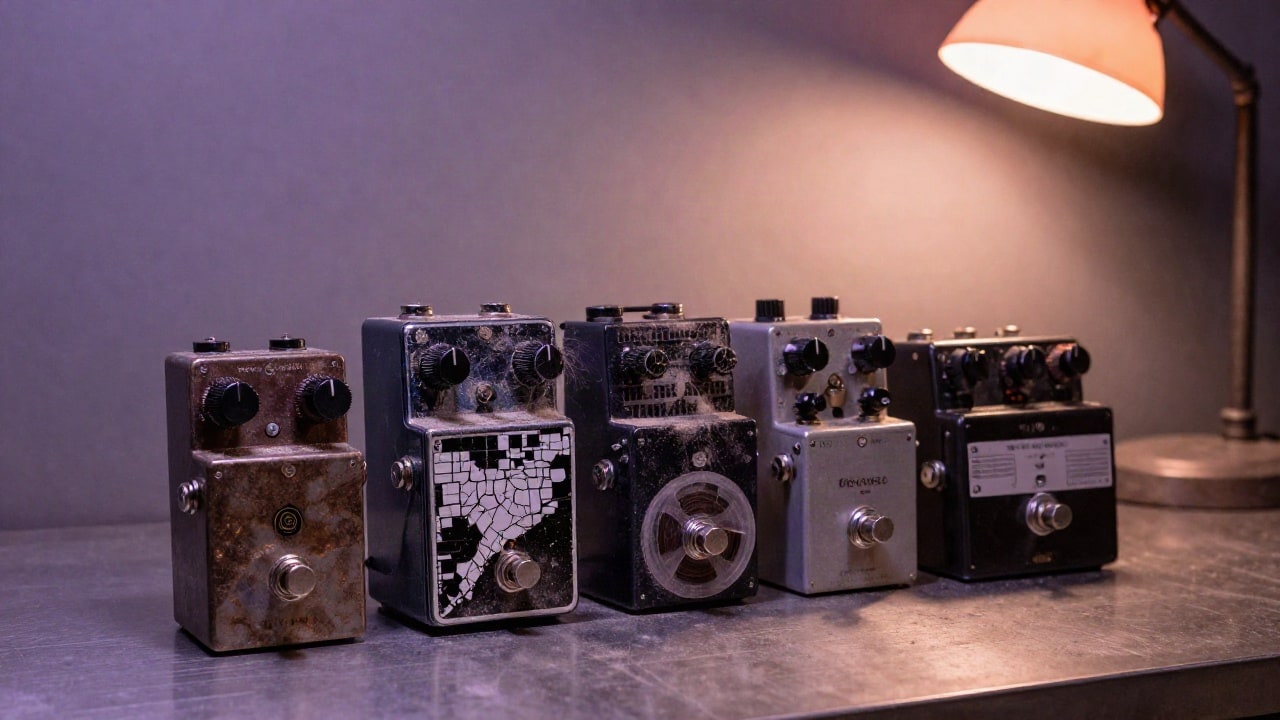
Listen to any professional track and pay attention to the seams — the moment before the drop, the hand-off between verse and chorus, the last bar before the outro. Something is almost always happening there: a riser climbing, the music grinding to a halt, a vocal chopped into a machine-gun stutter. Those are transition FX, and they're a huge part of why finished records feel finished. Sections don't just start and stop; they're announced, teased, and resolved. The good news is that none of these effects are hard to make. This guide covers the four workhorses — the pitch-sweep riser/drop, the Shepard tone, the tape stop, and the stutter/glitch — with a free browser tool for each. Everything runs 100% in your browser, nothing is uploaded, and each one works on your phone. By the end you'll know how each effect works, how to dial it in, and exactly where in an arrangement it belongs.
Riser / Drop (Pitch Sweep)
The build-up before a drop, the woozy power-down at the end of a phrase — those are pitch sweeps. The Pitch Sweep tool glides an entire clip up for a riser or down for a drop, automatically, with one knob. It's one of the fastest ways to add tension and motion to a track.
What a pitch sweep is for
A pitch sweep slides the whole clip's pitch smoothly from start to finish. Sweep up and you build anticipation — the classic riser into a chorus or drop. Sweep down and you get a falling, deflating effect — great for outros, transitions, or a power-down. Use it for:
- Risers and build-ups into a drop
- Falling "drop" transitions between sections
- Woozy, tape-style power-downs
Make your sweep
- Open the tool and load your clip (a short build-up sound or a one-shot works great).
- Set Glide (-24 to +24 semitones, default +12). Positive values glide the pitch up for a riser; negative values glide it down for a drop. The bigger the number, the more dramatic the sweep.
- Preview and export.
One knob, the whole transition.
Start from a preset
- Riser — glides up +12 for a clean build-up.
- Drop — glides down -12 for a falling transition.
- Nosedive — a big plummet of -24 for a dramatic power-down.
Tips for better risers and drops
- Sweep up (+12 or more) on white noise, a held synth, or a vocal to manufacture an instant riser.
- The Nosedive preset (-24) gives the most dramatic falling effect — perfect for a power-down ending.
- Want a mechanical, slowing-tape style power-down instead of a smooth pitch glide? That's a tape stop — covered below, with the Tape Stop tool.
- +12 or -12 (an octave) is a solid default Glide; push to +24 or -24 for the most dramatic risers and drops.
- Made a great sweep? Drop it into Studio to build it into a full loop or arrangement.
Build the tension — open the Pitch Sweep tool and start with the Riser preset.
Shepard Tone (the Endless Riser)
That feeling of a sound climbing forever and never arriving? That's a Shepard tone — the audio version of an optical illusion. With the Shepard Riser you can slide one under any track for build-ups, trailer hits, and drops that feel like they're falling off a cliff.
What a Shepard tone is
A Shepard tone stacks several copies of the same note an octave apart. As the stack rises, the highest octaves quietly fade out while new low octaves fade in underneath. Because there's no clear top or bottom, your ear can't tell where the climb begins or ends — so the pitch seems to rise (or fall) forever. It's a barber pole for sound.
That endless motion is perfect for tension: build-ups before a drop, dread before a reveal, and trailer-style risers that never resolve.
What it's for
Where the Pitch Sweep transforms the clip itself, the Shepard Riser lays the illusion as a bed underneath your existing track — the original keeps playing while the rising (or falling) tone builds tension around it. Use it for:
- Build-ups into a chorus or drop
- Trailer and cinematic risers
- Unsettling, anxious transitions and intros
The controls
- Level (10–100%, default 40%) sets how loud the Shepard bed sits under your track. Keep it low to add subtle unease; push it up for a dramatic, dominant riser.
- Descend (toggle, default off) chooses direction. Off is the classic endless rise; flip it on for an endlessly falling tone — that sinking, vertigo feel.
Step by step
- Load your track into the tool.
- Decide direction with Descend. Leave it off for a rising build-up; turn it on for a falling, sinking effect.
- Set the Level. Start around the default 40% so the bed supports the track rather than burying it.
- Preview against your audio, adjust Level until the tension sits right, then export.
Use the presets
- Endless Rise — the building-tension classic, Descend off.
- Endless Fall — sinking dread, Descend on.
- Trailer — a loud, dramatic bed for big cinematic moments.
Tips
- Less is often more: a low Level under a busy mix adds unease without anyone consciously noticing the riser.
- For horror or suspense intros, try Endless Fall at a higher Level — the falling version reads as dread far more than rise does.
- The Trailer preset is built loud on purpose; back the Level down if it overpowers your source.
Open the Shepard Riser tool, drop an endless climb under your track, and make your next build-up feel like it goes on forever.
Tape Stop (the DJ Power-Down)
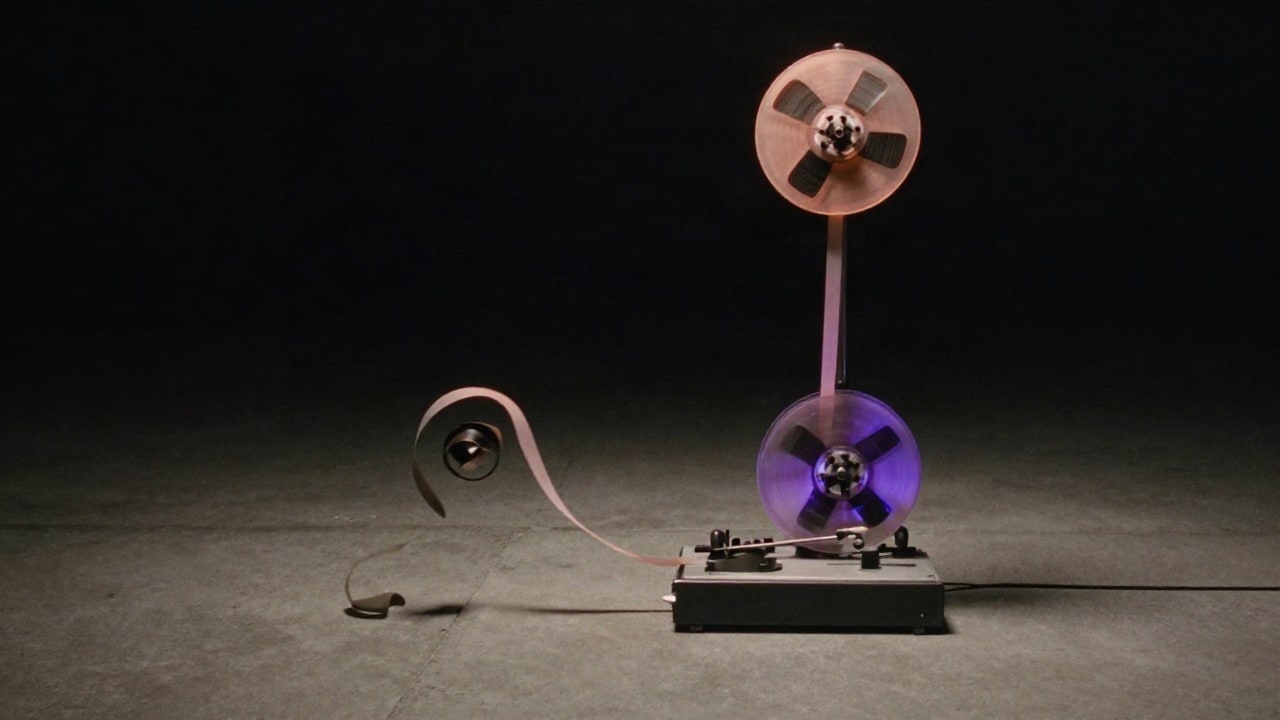
You've heard it a thousand times: the music suddenly drags down, pitch and tempo sinking together until everything grinds to a dead stop. It's the tape-stop effect — the sound of yanking power from a tape machine — and it's everywhere in DJ sets, TikToks, and right before the drop in club tracks. The Tape Stop tool nails it with a single knob.
What the tape-stop effect is for
A real tape machine doesn't stop instantly. As it powers down, the reels slow, so playback drops in speed and pitch at the same time. That coupled slowdown is what makes it sound mechanical and dramatic instead of like a simple fade — and it's what separates a tape stop from the Pitch Sweep's smooth glide. Use it for:
- Endings — slam a track to a halt instead of fading out
- Pre-drop tension — drag the energy down, then hit the drop
- Transitions between two sections or two songs
- Social clips — the TikTok/Reels power-down everyone recognizes
Step by step
- Open the Tape Stop tool and load your clip.
- Set how long the slowdown takes with Length (0.3–3s, default 1.2s). Shorter is a snappy yank; longer is a slow, dramatic death.
- Preview and export.
That's the whole tool — one knob, because the effect only has one real variable: how quickly the "reels" lose speed. The pitch-and-speed drop is handled for you.
Start from a preset
- Quick Stop — 0.6s, snappy. A fast yank for tight edits and quick transitions.
- Classic — 1.2s, the textbook DJ power-down. The default, and the one you'll reach for most.
- Slow Death — 2.5s, dramatic. A long, grinding descent for big moments.
Tips for a better tape stop
- Match Length to tempo. Faster songs usually want a shorter Length (try Quick Stop); slower, moodier tracks can take Slow Death.
- Stop into silence, then drop. A beat of nothing after the stop makes the next section land harder.
- It's great on full mixes. Unlike some effects, tape stop is meant for whole loops and tracks, not just single hits.
- Chop the moment in Studio. Build the transition around your stop by arranging it in Studio.
Open the Tape Stop tool and grind your track to a halt.
Stutter / Glitch (Beat Repeat & Edits)
A stutter takes a slice of audio and machine-guns it — re-triggering the same chunk to create that glitchy, edited-to-bits sound you hear at the top of drops, in footwork, and all over modern electronic edits. The Stutter / Glitch tool chops your track into a grid and re-fires the slices, with two knobs to control the size of each chop and how wild the re-triggering gets.
What the stutter effect is for
Stuttering turns a smooth part into rhythmic, glitchy energy:
- Build-ups — stutter a vocal or snare into a drop for instant tension
- Drum rolls and fills — tight, fast re-triggers that accelerate the groove
- Glitch edits — that chopped, footwork-style busyness
- Hiccups and accents — an occasional re-trigger that catches the ear
Step by step
- Open the Stutter / Glitch tool and load your audio.
- Set the slice length with Slice (30–400ms, default 120ms). Short slices give fast, tight stutters; longer slices give bigger, more obvious chops.
- Set how busy it gets with Chaos (0–100%, default 50%). Low Chaos is occasional, controlled re-triggers; high Chaos is dense, random, glitchy chopping.
- Preview and export.
The pairing is everything: small Slice with high Chaos is a frantic glitch storm, while a larger Slice with low Chaos is a tasteful hiccup here and there.
Start from a preset
- Glitch — busy re-triggers. Dense and chopped for full-on glitch energy.
- Drum Roll — 45ms, tight and fast. A classic accelerating roll for build-ups.
- Subtle — 200ms, an occasional hiccup. Adds movement without taking over.
Tips for tighter stutters
- Dial in Slice first. Get the chop size right, then use Chaos to decide how busy it is. They interact, so move in small steps.
- Build-ups love rising energy. Pair a tight Slice with mid-to-high Chaos going into a drop.
- Less is more on full tracks. On a busy mix, the Subtle preset adds character without turning everything to confetti.
- Arrange it in Studio. Once you've got a chop you like, place and sequence it inside Studio to build the full transition.
Open the Stutter / Glitch tool and start chopping.
Where each one lives in the arrangement
All four effects do the same job — moving the listener from one section to the next — but each has a home turf:
- Intro — a low-Level Shepard bed adds unease and forward pull before the track has even revealed itself; Endless Fall at a higher Level works for horror and suspense openings.
- Pre-drop / build-up — this is riser country. Stack an upward Pitch Sweep (+12 or more) with a Drum Roll-style stutter so both resolve on the same downbeat; a Shepard Endless Rise underneath makes the climb feel bottomless. A tape stop right before the drop — slowdown into a beat of silence — is the alternative move when you want the energy yanked out instead of built up.
- Drop / section switch — the moment of release. Cut or duck the Shepard bed the instant the new section lands, land the riser's peak on the downbeat, and let the silence after a Quick Stop make the entrance feel enormous. A downward Drop sweep (-12) works as the falling hand-off between two sections.
- Outro — end with authority instead of a fade: a Slow Death tape stop grinds the whole mix to a halt, or a Nosedive sweep (-24) gives a woozy, deflating power-down.
Every one of these takes a knob or two and a minute of your time — open the Quick Tools and give your next arrangement some seams worth hearing.
Ready to try it yourself?
Onomo is a creative suite in your browser — a full DAW, a design editor, a video editor and a writing room. Free to start, nothing to install.
Open the Quick ToolsOther product and company names mentioned here are trademarks of their respective owners. Onomo isn’t affiliated with or endorsed by them. Details about other products are accurate to the best of our knowledge as of the post date and may change.