A voice is the most recognizable sound in any mix — which is exactly why bending it is so powerful. Make it metallic and it's a robot. Squeeze it through a tiny speaker and it's a phone call. Shift its resonances down and the same singer becomes a giant hitting the same notes. Muffle it under a breathing filter and the whole track sinks below the surface.
This guide covers four of the most-asked-for voice treatments — robot (ring mod), telephone / radio, formant shift, and underwater — and how to get each one in seconds with a free browser tool. Every effect here runs 100% in your browser: nothing is uploaded, no account is needed, and it all works on your phone. Each tool keeps the controls to a knob or three, so you spend your time listening, not menu-diving.
For the full voice-changer collection beyond these four, see our free online voice changer guide.
Robot voice (ring modulator)
Want a voice that sounds like it's coming through a malfunctioning robot? Ring modulation is the weird, inharmonic trick behind decades of sci-fi sound design — and you can do it right now in the Ring Mod tool.
What a ring modulator does
A ring modulator multiplies your audio by a steady tone. Instead of layering a sound on top, it mathematically combines the two signals, producing new frequencies that aren't musically related to the original. The result is metallic, clangy, and unmistakably "machine." It's the classic Dalek voice, the robot-on-the-radio texture, and a go-to for chaos and sound design.
The tool keeps it to two controls, so you can dial a sound in seconds:
- Freq (20–2000Hz, default 200Hz) is the frequency of the modulator tone you're multiplying against. Low settings give you a slow, tremolo-like throb. As you climb, the effect gets brighter and more metallic, until it's full clanging robot.
- Mix (0–100%, default 70%) blends the modulated signal against the dry source. At 100% it's pure effect; pull it back to leave some of the original voice readable underneath.
Step by step
- Load your track or vocal into the tool.
- Start with a preset. Robot sets the classic metallic 200Hz tone — the default robot voice everyone recognizes.
- Adjust Freq to taste. Drag it up toward 900Hz for a harsher, higher clang; drop it down toward 40Hz for a low, pulsing throb instead of a pitch.
- Set Mix. Around 70% keeps the effect dominant while preserving a little intelligibility. Push to 100% for full sci-fi commitment.
- Preview, then export.
Use the presets as starting points
- Robot — the classic metallic 200Hz tone. Best all-purpose robot voice.
- Dalek — high, clangorous 900Hz for that exterminating menace.
- Sub Throb — a low, tremolo-y 40Hz for slow pulsing texture rather than a metallic pitch.
Load a preset, then nudge Freq and Mix from there instead of starting from scratch.
Robot voice tips
- For an intelligible "computer voice," keep Freq low-ish and back Mix off 100% so words stay readable.
- Sustained tones (held vocals, pads, organ) reveal the metallic character better than fast, percussive material.
- Want subtle? Sub Throb at a lower Mix acts almost like a tremolo, adding movement without obvious robotization.
- The only difference between the Robot and Dalek presets is the Freq — Robot uses a metallic 200Hz, Dalek pushes up to a higher, clangier 900Hz.
Telephone / radio voice
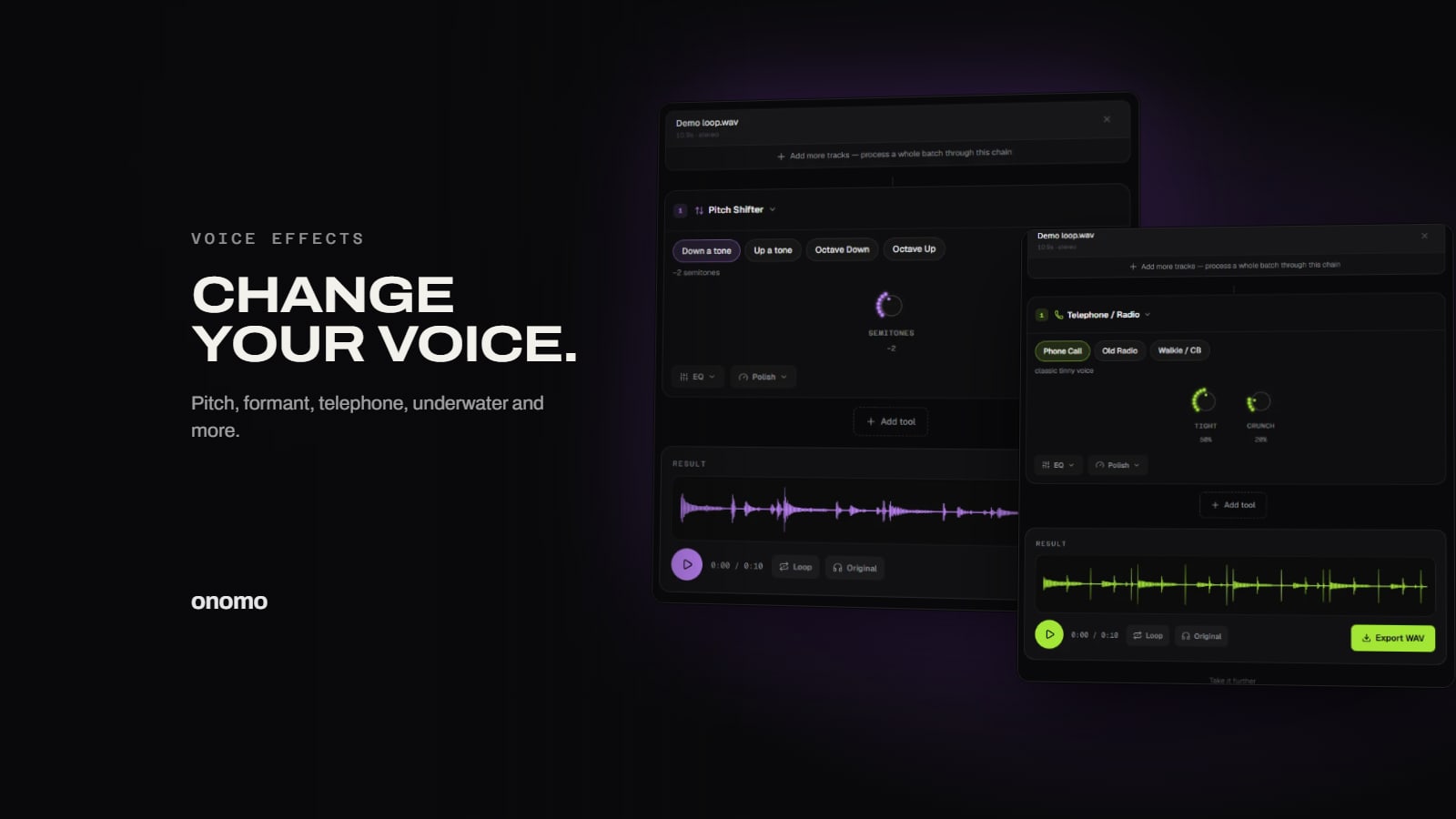
A telephone voice is the sound of a big signal forced through a tiny speaker. Cut the deep lows and airy highs, leave a narrow band of midrange, add a touch of grit, and a full-range vocal instantly becomes a phone call, an old radio broadcast, or a crackly walkie-talkie. The Telephone / Radio tool gets you there with two knobs.
What the telephone effect is for
This effect is a storytelling shortcut. The moment a voice sounds tinny and boxed-in, the listener pictures a phone, a radio, or a transmission. Use it for:
- Phone-call moments in songs, skits, and podcasts
- Old-radio and vintage broadcast narration
- Walkie-talkie / CB chatter for action and dialogue
- Contrast in a mix — push a vocal "into the distance" before it bursts back full-range
Step by step
- Open the tool and load your audio (vocals work best).
- Set how narrow the sound gets with Tight (0–100%, default 50%). Higher values squeeze the band tighter — more midrange-only, more "small speaker."
- Add character with Crunch (0–100%, default 25%). This is grit for a CB-radio or broadcast vibe; a little goes a long way.
- Preview and export.
Tight sets the size of the speaker the voice seems to come from, and Crunch sets how rough the transmission is. Together they cover everything from a clean cell call to a battered walkie-talkie.
Start from a preset
- Phone Call — classic tinny. The cell-phone / landline sound.
- Old Radio — warm and mid-forward. A vintage broadcast feel without too much harshness.
- Walkie / CB — tight and gritty. Narrow band plus crunch for transmission chatter.
Tips for a convincing transmission
- Dry vocals sell it best. A clean, close vocal squeezed through the effect reads more like a real phone than a reverb-heavy one.
- Automate the entrance. Have a voice come in over the phone, then drop the effect when they "pick up" or step into the room — that switch is dramatic.
- Layer a tiny bit of room. A whisper of ambience under the phone voice can make it feel like it's playing back in a space.
- Keep Crunch subtle for phone calls. Save the heavy Crunch for walkie-talkie and CB textures.
Formant shift (change character, not pitch)
Want a voice to sound deeper or like a monster — but keep it singing the exact same notes? That's a formant shift, and it's a different thing from pitch shifting. The Formant Shift tool changes a voice's character (its timbre) while leaving the melody untouched, all with a single knob.
Formant shift vs. pitch shift — the key distinction
This trips people up, so let's be clear:
- Pitch shift moves the notes up or down — the melody itself changes key. That's the Pitch Shifter tool.
- Formant shift keeps the notes exactly where they are and instead changes the body of the voice — making it sound like it's coming from a bigger or smaller singer.
Formants are the resonances of the throat and mouth that give a voice its size and character. Shift them down and the voice feels bigger and deeper; shift them up and it feels lighter and brighter — without ever touching the pitch.
How to shift formants
- Open the tool and load your vocal.
- Set Shift (-8 to +8, default 0). Negative values make the voice deeper and bigger; positive values make it brighter and lighter. Zero is no change.
- Preview and export.
One knob, two directions.
Start from a preset
- Deeper — darker and bigger, a moderate downward shift (around -4).
- Monster — low and menacing, a heavy downward shift (around -7).
- Brighter — lighter, chipmunk-style timbre, an upward shift (around +4).
Tips for character shifts
- For a believable "bigger voice," stay in the moderate range (around the Deeper preset) — extreme shifts start to sound obviously processed.
- The Monster preset is perfect for villain voices, dark intros, and horror vibes.
- Push Shift positive for a bright, comic, chipmunk-like timbre that still hits the original notes.
- Combine a formant shift here with a separate pitch shift in the Pitch Shifter when you want to change both the character and the key.
Underwater (muffled & dreamy)
The underwater sound is pure mood. Everything goes muffled and far away, the highs disappear, and the whole track seems to gently breathe — like music drifting up from below the surface or thumping through a wall from the next room. The Underwater tool builds that with a heavy, slowly moving low-pass filter and a touch of reverb for depth.
What the underwater effect is for
This is the go-to for dreamy, distant, submerged textures:
- Intros and breakdowns that pull energy and highs out, then bloom back to full clarity
- "Heard through a wall" moments — a party in the next room, music from downstairs
- Dream sequences and lo-fi ambience
- Transitions — sink into the filter, then surface for the drop
Step by step
- Open the tool and load your audio.
- Set how muffled it gets with Depth (0–100%, default 60%). Higher values cut more highs and push the sound further under.
- Add movement with Sway (0–100%, default 40%). This is the filter slowly breathing — the gentle open-and-close that makes it feel liquid rather than just dull.
- Add space with Depth FX (0–70%, default 30%), the reverb amount. More reverb makes it feel vast and distant.
- Preview and export.
Depth sets how underwater, Sway gives it life, and Depth FX sets how far away. Those three cover everything from "just below the surface" to "the bottom of the ocean."
Start from a preset
- Submerged — deep and swaying. The classic underwater feel with plenty of movement.
- Abyss — very muffled and vast. Heavy filtering plus space for a huge, distant sound.
- Next Room — heard through a wall. Muffled but closer, like music from the room next door.
Tips for a deeper dive
- Surface for the drop. Lean into Depth during a breakdown, then go dry the moment the full track returns — that clarity contrast is the payoff.
- Match Depth FX to distance. For "next room," keep reverb modest; for "abyss," push Depth FX toward the top for vastness.
- Full mixes work great. This effect is built for whole loops and tracks, not just single sounds.
- Don't max everything. Very high Depth plus heavy Depth FX can wash a track out — find the balance where it's clearly underwater but still has shape.
Pick your effect
| You want... | Use | Key controls | Start with |
|---|---|---|---|
| A metallic, sci-fi robot or Dalek voice | Ring Mod | Freq, Mix | Robot preset (200Hz) |
| A phone call, old radio, or walkie-talkie sound | Telephone / Radio | Tight, Crunch | Phone Call preset |
| A deeper, bigger, or monster voice on the same notes | Formant Shift | Shift (-8 to +8) | Deeper preset (~-4) |
| A muffled, dreamy, submerged or next-room feel | Underwater | Depth, Sway, Depth FX | Submerged preset |
All four are free, run entirely in your browser with nothing uploaded, and work on mobile — pick the character your track needs and start turning knobs.
Ready to try it yourself?
Onomo is a creative suite in your browser — a full DAW, a design editor, a video editor and a writing room. Free to start, nothing to install.
Open the Quick Tools