Why Manual Lyric Syncing Is a Waste of Time
If you’ve ever made a lyric video the old way, you know the pain. Write lyrics in a notes app. Export to a video editor. Then zoom into the timeline and manually place each word, frame by frame, across a three-minute song. That’s easily an hour of tedious clicking — and one mistimed syllable means redoing a whole section.
The problem isn’t you. It’s that your tools don’t talk to each other. Your lyrics live in one app, your music in another, your video editor in a third. Every transfer breaks the connection between what you wrote and when it should appear.
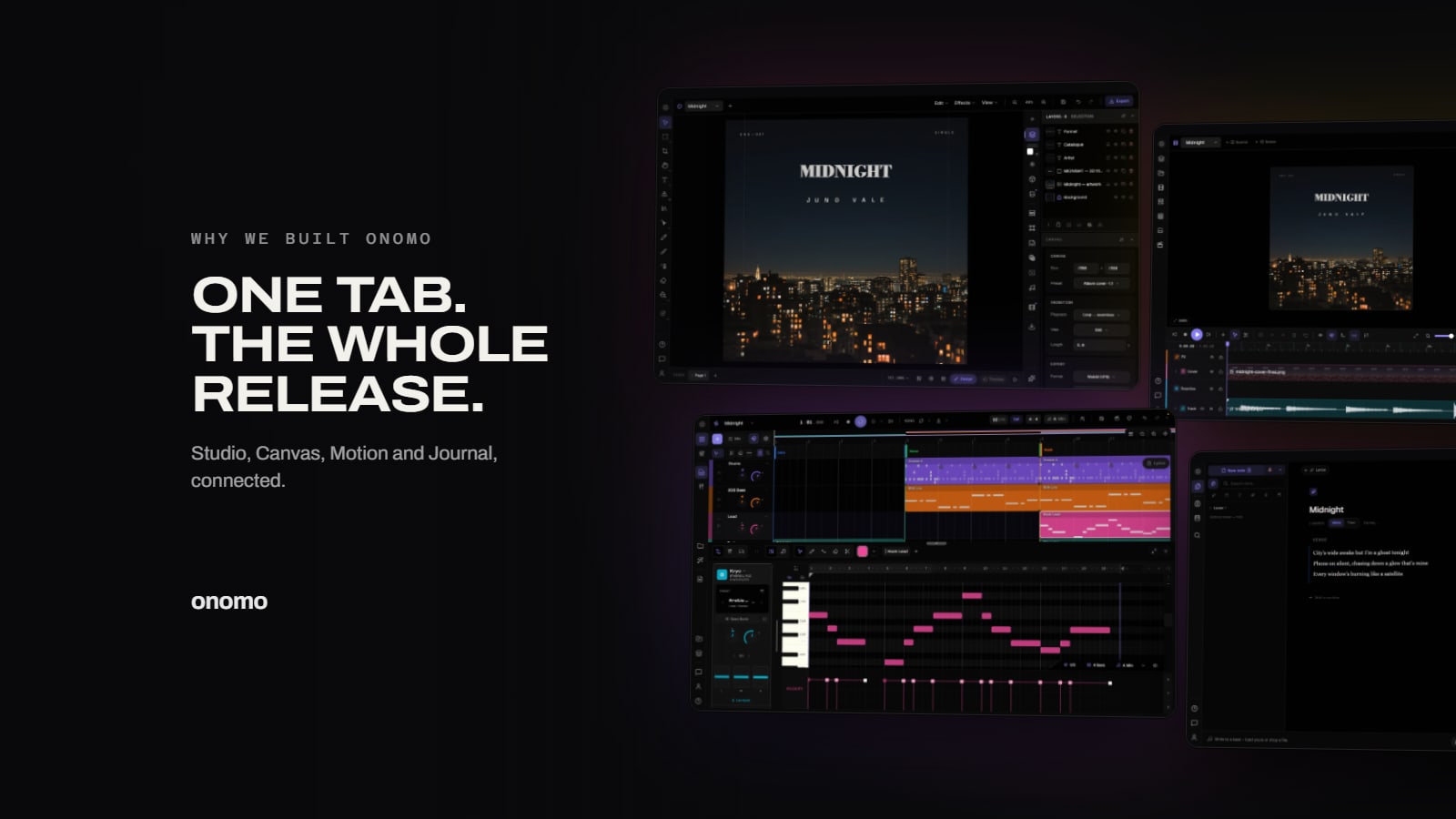
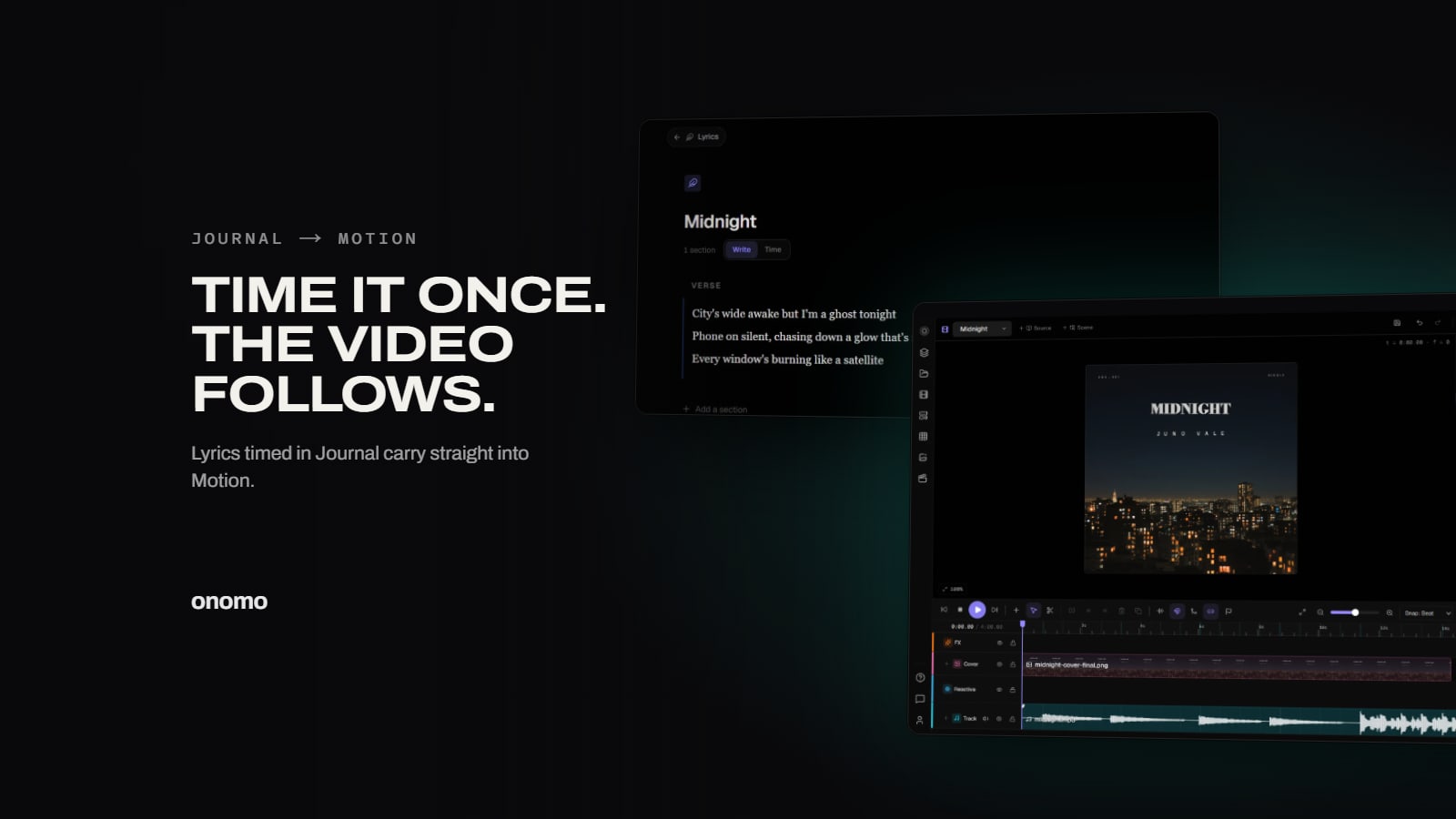
Onomo’s cross-surface integration kills that gap. When you write lyrics in a Journal lyric doc, you can time them to your project in one quick pass. Then Motion — the music-video editor — reads those timings directly. No export, no manual placement, no frame-by-frame. The words just land on the timeline, already synced to your song.
What You Need Before You Start
You probably already have everything. Here’s the checklist:
- A finished song — a Studio project, or an audio file of the track.
- Lyrics in a Journal lyric doc — even a rough draft works. The timing step is fast, and you can adjust later.
- A modern browser — Chrome or Edge recommended (they handle Onomo’s AudioWorklet engine best). No downloads, no installs, no plugins.
That’s it. One tab, one account, one workflow.
Step 1: Write and Time Your Lyrics in the Journal
Open Journal and start a new lyric doc from Docs. You can compose new lyrics or paste existing ones. The built-in Rhymebook is handy if you’re still working on flow — it suggests perfect, near, and slant rhymes for your last word, built on the open-source CMU Pronouncing Dictionary.
Once your lyrics are in, you need to link them to your music. Switch the lyric page into its timing view, press start, and tap Space as each line lands to stamp its start. It’s a one-pass process — you listen once, tap as you go, and the timing data is captured. No zooming, no dragging handles on a waveform. (For word- and syllable-level timing, the Time panel goes finer.)
If you’re not happy with a marker, you can nudge it later. But most of the time, the first pass is close enough. There’s nothing to export — Motion reads the same timing natively from the Journal.
Step 2: Open Motion and Import Your Project
From Studio, click Open in Motion in the transport — it carries your song’s tempo and sections into Motion’s timeline. Or open Motion directly and bring in your song’s audio.
Now add the karaoke layer. Add a lyric clip, and in its lyric editor choose Song lyrics to import the lyrics you timed in the Journal. Your words appear with the timings you tapped — already lined up with the audio. No manual sync needed.
If you have multiple verses or a bridge, those are separate entries in the timeline. You can drag them to rearrange or trim them, but you probably won’t need to.
Step 3: Customize the Visuals (Audio-Reactive FX Make the Difference)
With your lyrics timed, you can build the video. Add a background — video clips, still images, solid colors, or even the cover art you designed in Canvas. Resize and position your lyrics: choose font, color, animation style. Motion supports word-by-word highlights and line-by-line reveals. Pick the one that matches your song’s energy.
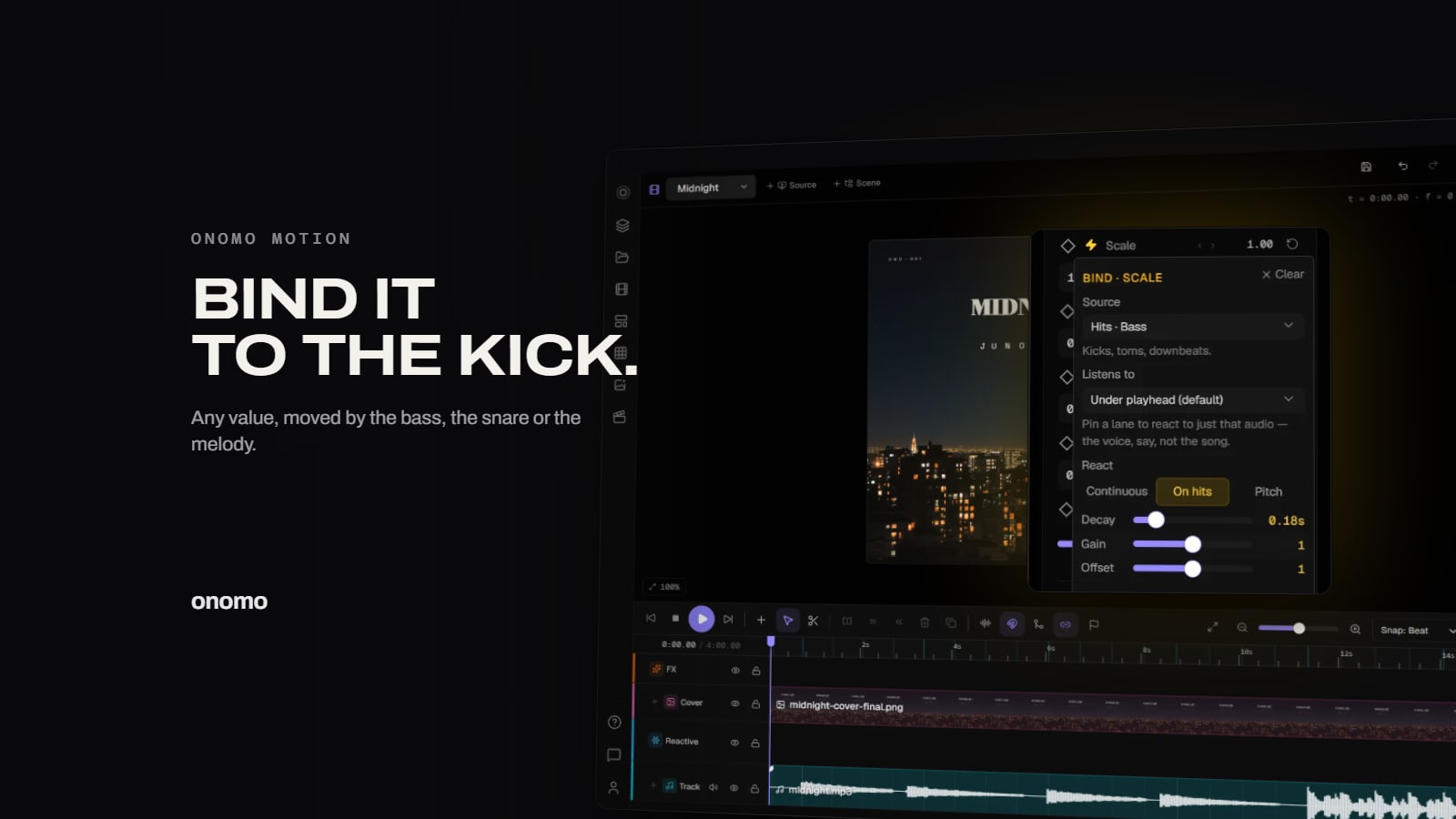
This is where Onomo’s integration turns a lyric video into something more. Audio bindings let you tie any visual parameter — scale, opacity, blur, position, color — to a specific part of the song: the hits in the low, mid, or high end, the energy in a band, or the pitch of the melody. So the background can pulse with the kick, the lyrics can glow as the melody rises, or the whole video can blur and sharpen with the bass drop. Load a stem pack and each instrument gets its own track, so a binding can follow the vocal alone.
To use it, select a layer, click the bolt next to any parameter, and pick a source (and a track, if you’ve loaded stems). Set the gain. That’s it. Your video now reacts to the music itself, not just a static waveform — without a single hand-placed keyframe.
Step 4: Export and Share
When you’re happy, click Export. Motion renders locally in your browser — no server wait, no queue. Choose your aspect ratio:
- Vertical (9:16) – TikTok, Reels, Shorts
- Square (1:1) – Instagram posts
- Spotify Canvas – a dedicated vertical preset, capped at 8 seconds
- Widescreen (16:9) – YouTube, Vimeo
Export as MP4. The video includes your audio, your visuals, and your perfectly synced lyrics. Upload directly to your platform of choice.
Why This Workflow Beats the Manual Way
The usual lyric-video process means stitching together separate tools: write the words in one app, produce the music in another, then drag each line of text onto a video timeline by hand, guessing when it lands. Every hand-off breaks the link between what you wrote and when it should appear.
Onomo collapses that into one place. Because your lyrics, music, and video live in the same project:
- Timing flows automatically from Journal to Motion — no exporting an SRT file, no re-aligning a single word.
- Visuals react to your actual song. Audio bindings let the video pulse with the kick or follow the melody — and with a stem pack loaded, react to a single instrument on its own track.
- It all runs in a browser tab. No downloads, no plugins, no shuffling files between apps.
The real win: the lyric video stops being a separate project and becomes the last quick step of the one you're already in.
Try It Yourself
Motion is free to use with any Onomo account — no credit card needed for the video editor. Start with a Studio project or import an audio file; the lyric sync works either way. If you’re already writing in Journal, your next lyric video is a few clicks away.
Open Motion and see how fast a pro lyric video can be.
Ready to try it yourself?
Onomo is a creative suite in your browser — a full DAW, a design editor, a video editor and a writing room. Free to start, nothing to install.
Try Motion FreeOther product and company names mentioned here are trademarks of their respective owners. Onomo isn’t affiliated with or endorsed by them. Details about other products are accurate to the best of our knowledge as of the post date and may change.